How to Extract Text from Photos and Scans with an OCR API: Receipts, Forms, Labels and VINs
A surprising amount of business data still arrives as a picture. A receipt photographed on a phone, a supplier's invoice scanned to PDF, a form filled in by hand, a label on a box, a VIN seen through a windshield. Somebody reads it and types it in.
An OCR API does the reading. This guide shows what one request gives back, which jobs it fits, where accuracy drops, and how to check the results without opening every page yourself.
What one request gives back
You send a JPEG, PNG or PDF to the OCR API. It finds the text and returns it as JSON, with a box for where each piece of text sits on the page. There are two modes:
simple-text (the default) returns all the text on the page as one block.
simple-words returns every word separately, each with its own box.
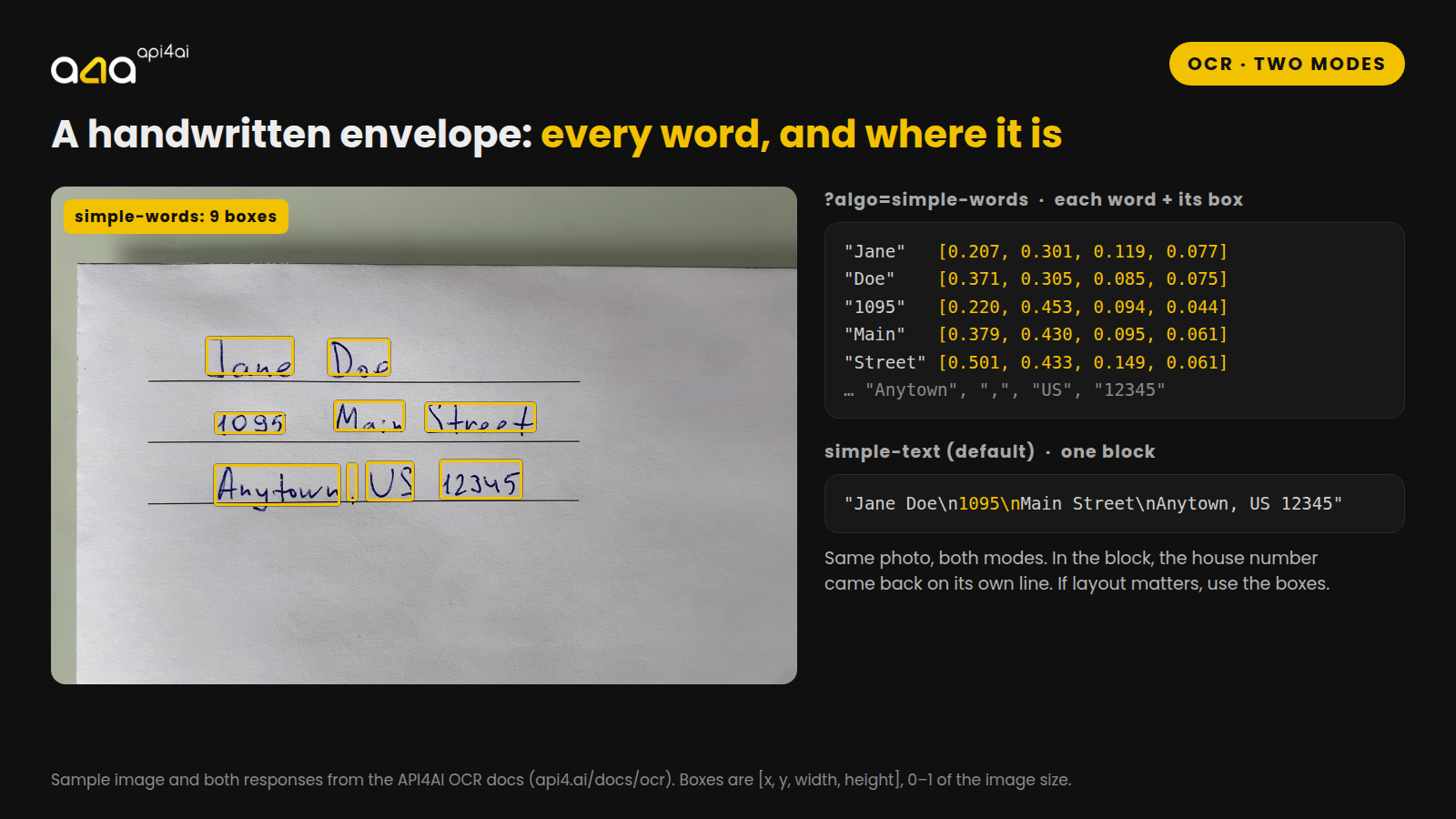
The envelope above is the example from our docs, and it's handwritten. Both modes read every word. But look at the one-block version: the house number came back on its own line, separate from "Main Street", even though they share a line on the envelope. If layout matters to you, and on receipts and forms it usually does, use simple-words and rebuild the lines from the boxes. Words whose vertical centres line up belong to the same line.
Each box is four numbers, [x, y, width, height], as fractions of the image size. Multiply by the image's width and height to get pixels.
{ "box": [0.3793, 0.43, 0.0947, 0.061],
  "entities": [{ "kind": "text", "name": "text", "text": "Main" }] }
Four jobs it fits
Receipts and invoices
The obvious one: turn a stack of scanned bills into text you can search, store and process. A multi-page PDF is fine. Each page is converted to an image and read separately, and comes back with its own page number.
Layout is where receipts get tricky. We photographed a test receipt (a made-up café, slightly tilted on a table) and sent it in both modes. Every one of its 51 words came back correctly. But in the one-block mode, the four amounts at the bottom came after their labels: "Subtotal, VAT, TOTAL, Card", then "16.50, 2.75, 16.50, 16.50". The word boxes fix that. Group the words into lines by their height on the page, allowing for the tilt, and "TOTAL 16.50" is one line again.
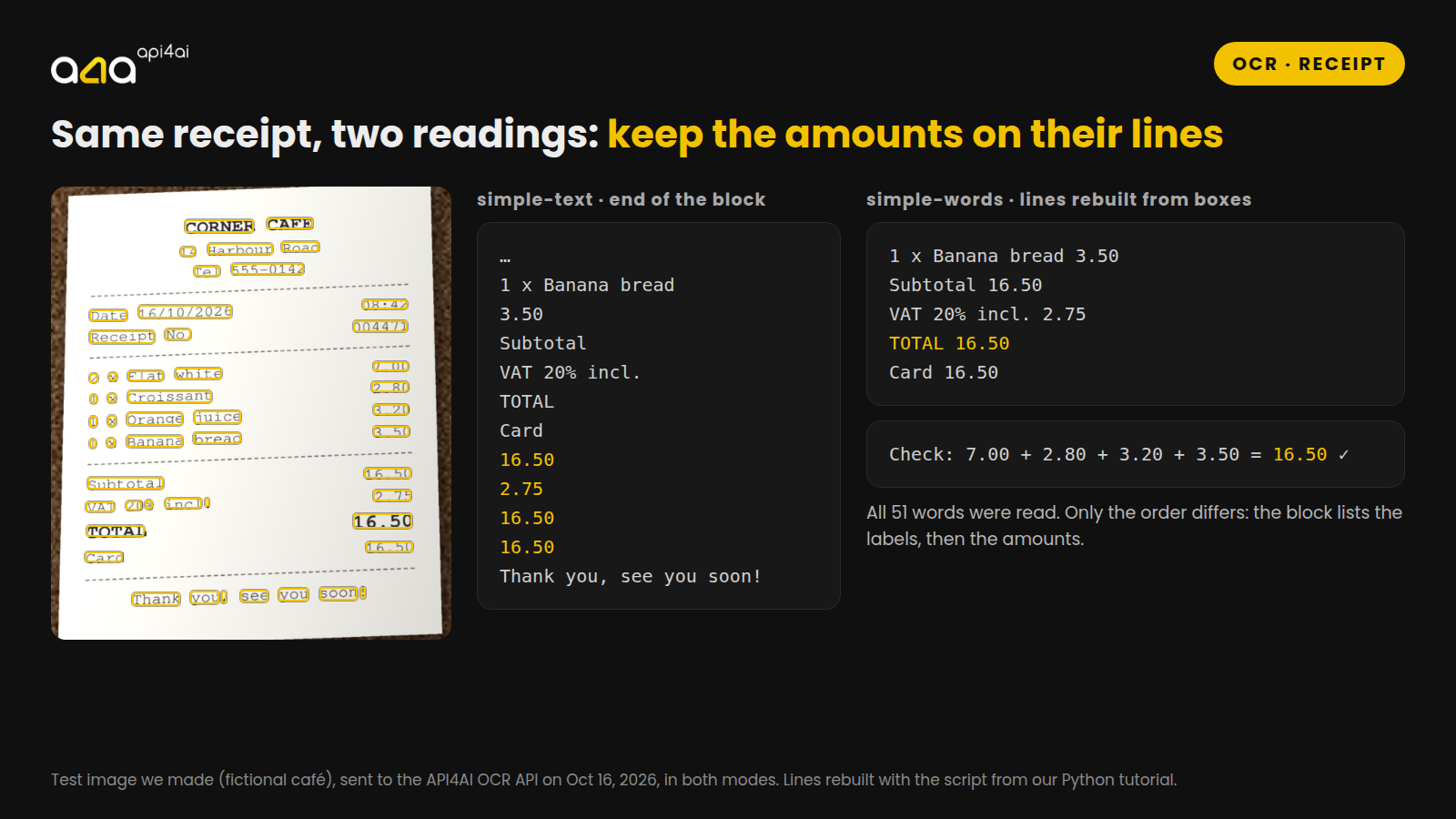
One thing to understand from the start: OCR gives you text, not fields. It reads "TOTAL 12.50" but doesn't know that 12.50 is the total. That's a rule you write, usually a pattern plus the word next to it, and it's simpler than it sounds when your documents come from a handful of suppliers.
Forms and addresses
Printed forms, delivery notes, envelopes, application forms. The demo envelope shows that neat handwriting can be read too. Where several people fill in the same form, the boxes help again: a field on the form is a region on the page, so you can pick up whatever text falls inside it.
Labels, signs and text in a scene
Product labels, shelf tags, packaging, signs. Text in a real scene is harder than a flat scan, and it brings a side effect.
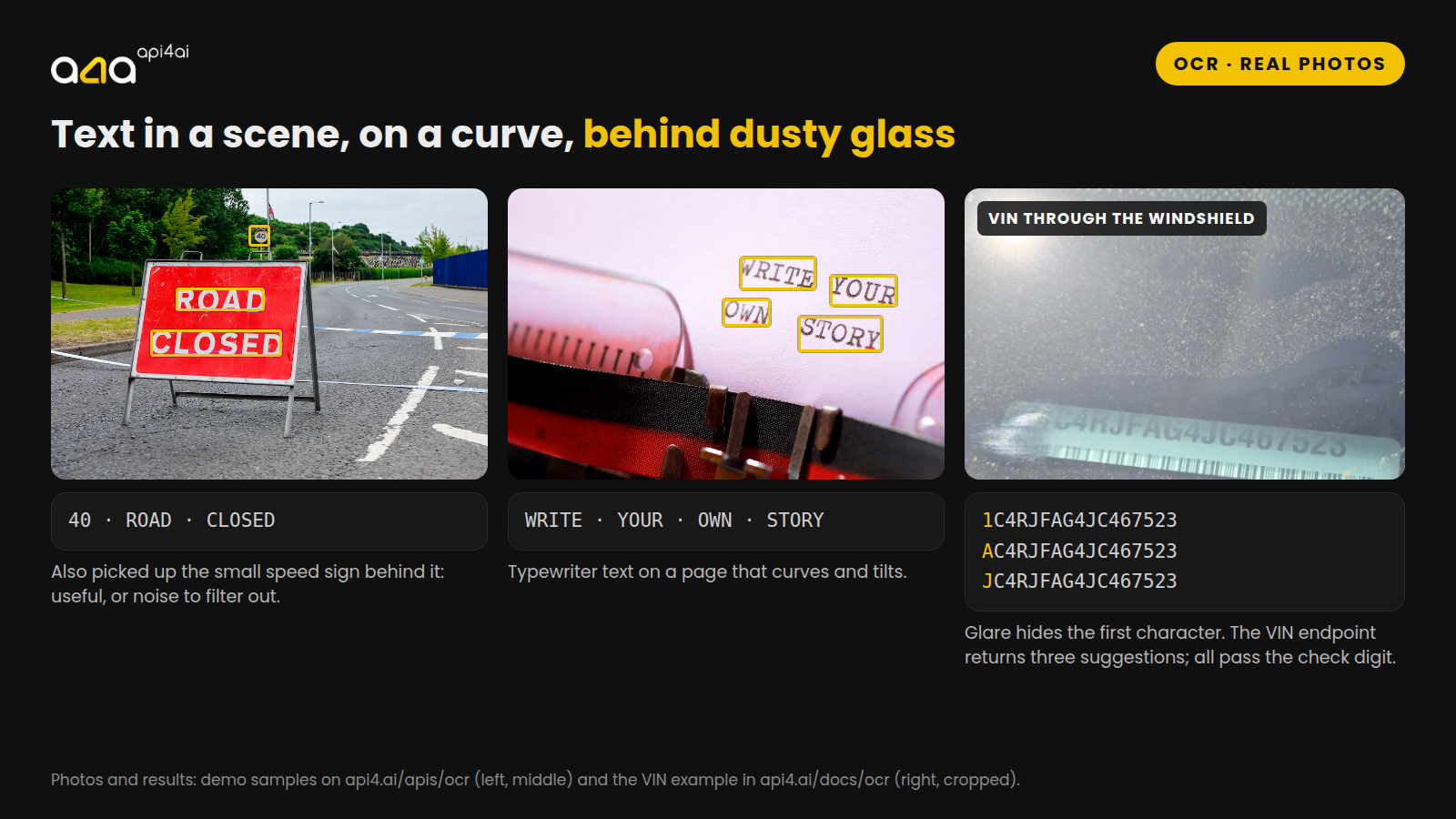
In the road photo, the API read the sign you'd expect and also the small speed-limit sign behind it. Sometimes that's exactly what you want. If you only care about the main label, filter by box size or position.
Several languages on one sign work too. On a test sign we made with English, Spanish, German, Japanese and Russian, all five lines were read, with two slips: a ghost "H2 *" over the Japanese line, and one arrow read as pointing up. That's the kind of mistake the checks below are for.
We also recommend reading relevant article Building a multi-stage content moderation system: NSFW detection + OCR.
Serial numbers and VINs
A VIN isn't random text. It's always 17 characters, it never uses I, O or Q, and its ninth character is a check digit. The OCR API has a separate endpoint, /ocr/v1/vin/results, that uses those rules. Instead of one string it returns a list of suggested VINs, each of which passes the checks.
The example in the figure shows why that matters. Glare hides the first character, and the endpoint returns three candidates: 1C4RJFAG4JC467523, AC4RJFAG4JC467523 and JC4RJFAG4JC467523. All three pass the check digit, because in the VIN formula the letters A and J carry the same value as the number 1, so the check can't tell them apart. The fix is outside the image: a second photo, or matching against the VINs you already have.
Where accuracy drops
None of this is specific to one service. Any OCR gets worse on:
Blur and small text. A sharp phone photo beats a large blurry one. If the text you need is small, crop to it before sending. The maximum resolution is 4096×4096, so a large photo has to be scaled down first, and scaling shrinks small text further.
Glare and reflections. Glossy receipts, laminated labels and anything behind glass. Tilt the camera to move the glare off the text.
Handwriting. Neat block letters, like the envelope, are fine. Joined-up writing, crossings-out and dense notes are less reliable. Test on your own forms.
Strong angles and curves. The demo's typewriter page was read at a tilt, but a label wrapped round a bottle or a page photographed nearly edge-on loses letters.
Low contrast. Faded thermal receipts, grey text on grey, photos taken in poor light.
The practical advice is the same each time: try your worst examples in the demo before you build anything.
How to check the results
The response has no confidence score, so you can't simply filter on "below 80%". What works instead are checks on the text itself, and they catch more than a score would, because they test what you actually need:
Check every page's status. A file the service can't read still comes back as HTTP 200, with status.code set to "failure" and the reason in status.message. If you only look at the HTTP code, unreadable files quietly disappear.
Flag empty and near-empty pages. No text, or three words on what should be an invoice, means a blank page, a bad photo or the wrong document.
Check formats. Does the date parse? Does the amount look like money? Is the postcode the right length? For a VIN, the endpoint already does this.
Cross-check. Do the line items add up to the total? Does the invoice number appear where you expect it?
Send failures to a person, and keep the raw response. A human checks only the pages that fail a rule. Storing the full JSON means you can change a rule later without paying to read the pages again.
Tomorrow's tutorial turns this into a Python script that reads a whole folder, rebuilds the lines from the word boxes, and writes a report of the pages to check.
What it doesn't do
No fields. It returns text and positions, not "invoice number" or "total". The rules are yours.
No tables. You get words with boxes; rebuilding rows and columns is up to you.
No confidence score. See the checks above.
No translation. It reads many scripts and languages, including several in one image, but returns the text as written.
If the standard API doesn't fit, a custom version is possible. The OCR API page explains how that works.
What it costs
On the API4AI developer portal the OCR API is pay-as-you-go at $5 per 1,000 requests, with no subscription. One image is one request. A PDF is charged per page, so a 10-page PDF counts as ten. New accounts start with $5 of credit, which is about 1,000 pages.
For large volumes, write to hello@api4.ai with a rough monthly number and a few sample pages, and we'll send a volume quote.
Try it on your worst page first
The demo on the OCR API page takes your own JPEG or PNG and shows every word it found, without an account. Use the faded receipt and the handwritten form, not the clean scan. If the results look usable, an API key on the portal takes a minute and needs no credit card, and the docs have the full reference.