
Car Photo Background: How to Change or Clean It for Listings
Most car photos are taken where the car happens to be: on the lot, on the street, in front of the next car along. The car is fine. The background is the problem. A fence, a bin, a neighbour's bumper and somebody's reflection all end up in the picture that is supposed to sell it.
Changing the background of a car photo used to mean an hour in a photo editor, tracing around mirrors and wheel arches. It doesn't any more. This guide covers three ways to do it, depending on whether you have one photo, a day's worth, or a system that needs it done automatically.
What "changing the background" means
Two steps happen, whichever tool you use:
The car is cut out. Everything that isn't the car is removed, leaving the car on a transparent layer.
A new background goes behind it. Plain white, a light grey, your brand color, or a backdrop image of your own, such as a showroom floor.
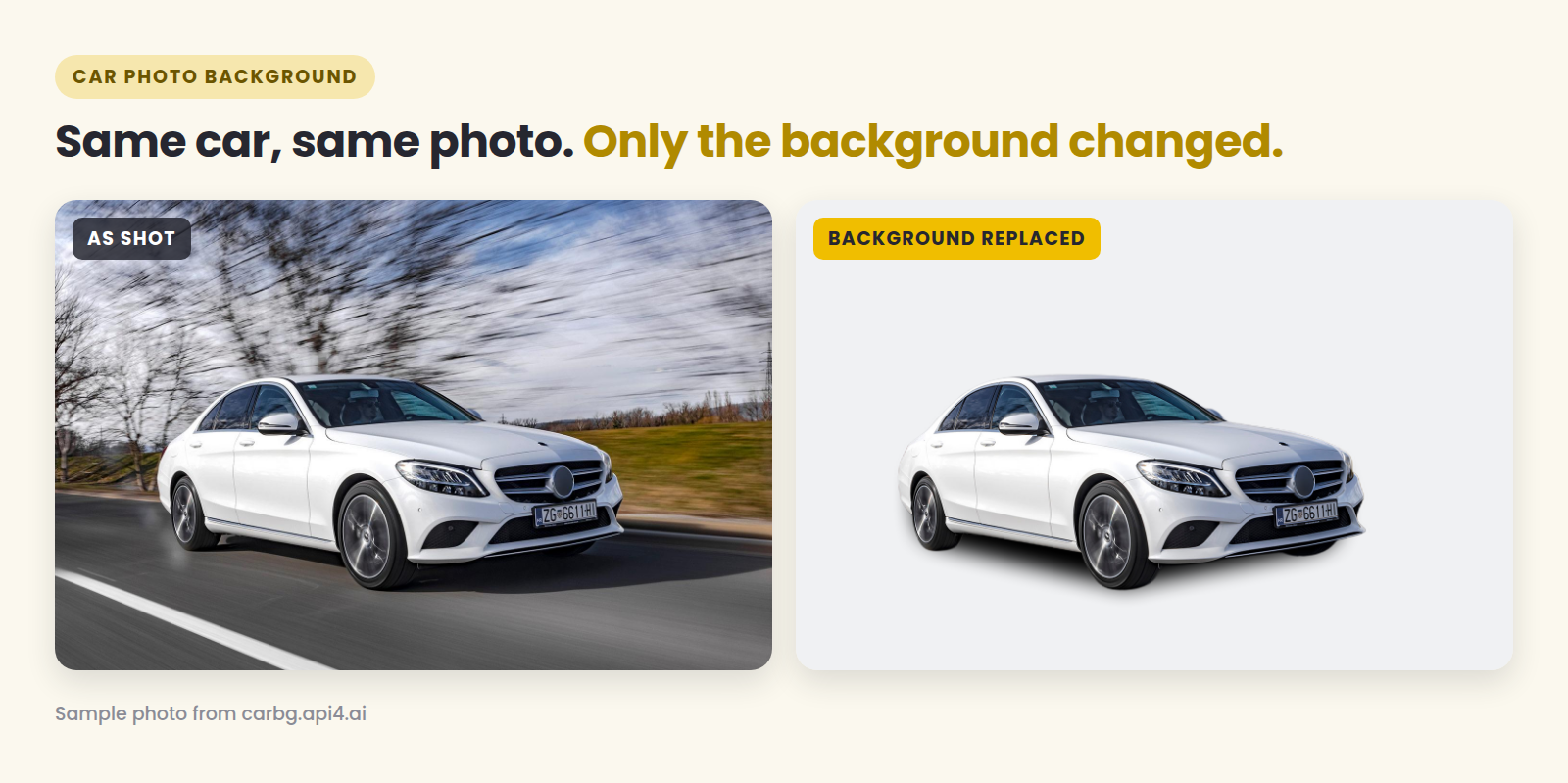
The car itself should come back exactly as it was shot: same paint, same trim, same reflections on the bodywork. If a tool starts repainting the car or inventing details, it's the wrong tool for a listing, where the photo has to match the vehicle.
Which background to choose
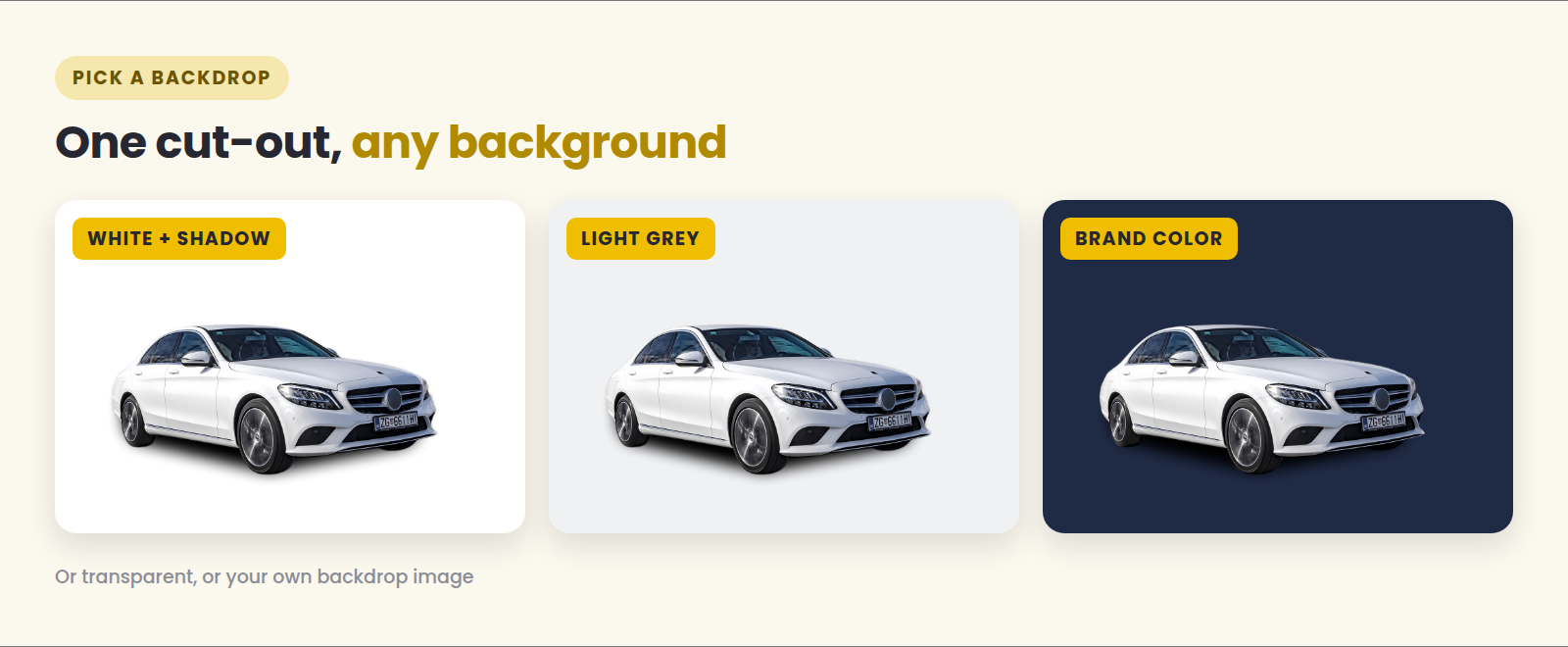
White or light grey for marketplaces and classifieds. It's the safest choice and makes a page of listings look like one seller's stock. Light grey is kinder to white and silver cars, which can disappear on pure white.
A brand color for your own website and social posts, where you want the stock to look like yours at a glance.
Your own backdrop when you want the showroom look without the showroom.
Transparent when a designer or another system will place the car later.
Add a soft shadow under the car if the tool offers it. Without one, a cut-out car looks like it's floating.
One thing to check before you standardize: if your inventory feeds Google's vehicle ads, Google's image guidelines discourage cluttered backgrounds, which is an argument for cleaning them up. The same guidelines also discourage dealership branding in the image, so keep logos and slogans off the backdrop for that feed.
Three ways to do it
One photo: try it in the browser
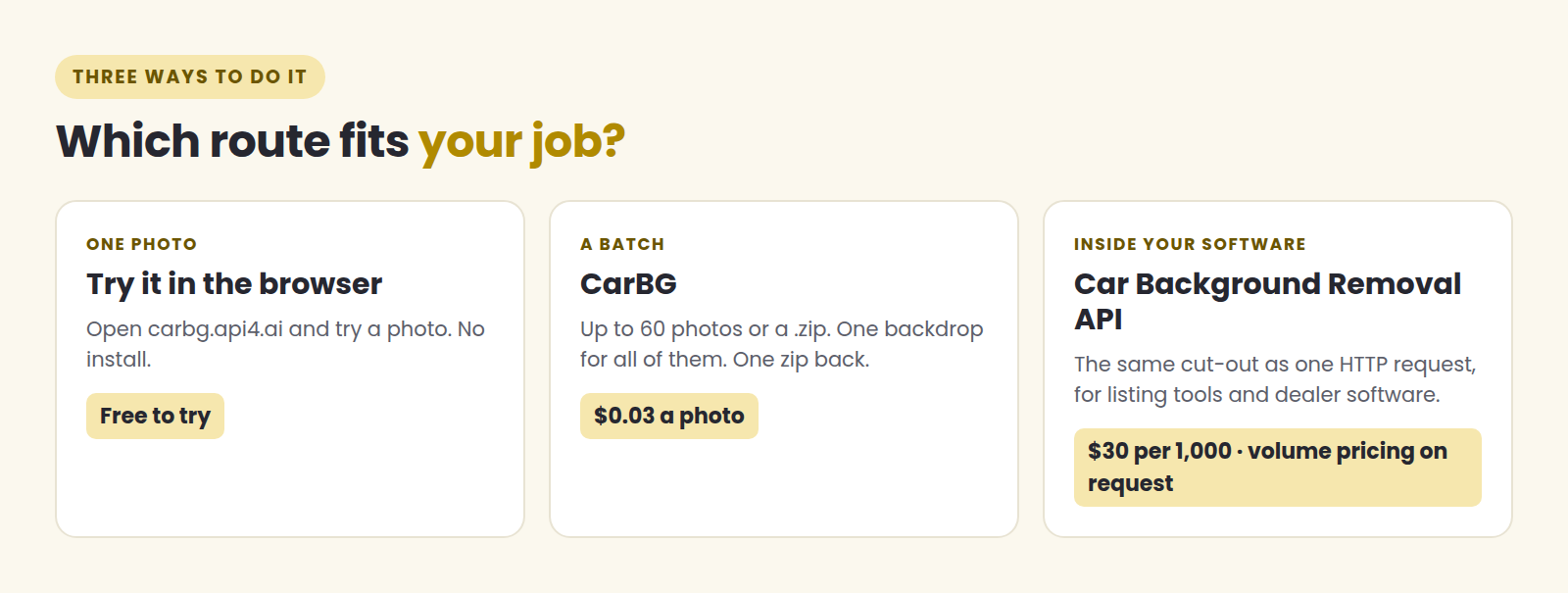
Open carbg.api4.ai and try it with your own shot: one photo, no account needed. It's the quickest way to see what the result looks like on your kind of car, in your kind of light, before deciding anything else.
A batch: the day's photos in one go
This is the normal case for a dealer. CarBG takes up to 60 photos at once, or a .zip straight off the camera card:
Upload the photos (JPG or PNG, up to 20 MB each, 100 MB per zip).
Pick one backdrop for the whole batch: transparent, white, brand color or your own image. Optionally add a drop shadow and blur the license plates.
Download one zip with every photo done.
It costs $0.03 per processed photo, with no subscription. Photos that fail to process aren't charged, and a new account starts with $5 of free credit, about 166 photos, with no card.
One backdrop for the whole batch is the point. Consistency is what makes thirty different cars, shot on thirty different days, look like one dealership.
More details in the blog post How to blur license plates in car photos.
Inside your own software: the API
If you build listing tools, dealer software or a marketplace, the same cut-out is available as the Car Background Removal API: one HTTP request per photo, with the shadow and the plate blur as options. The list price is $30 per 1,000 images, pay-as-you-go on the API4AI developer portal, and volume pricing is available on request.
Detailed recommendations are available in the How dealerships standardize vehicle listings without Photoshop.
How to take photos that cut out well
The cut-out is automatic, but the photo you give it still matters:
Keep the whole car in the frame, with a little space around it. A cropped bumper stays cropped.
Leave a gap between the car and whatever is behind it. A car parked tight against another car of the same color is the hardest case.
Shoot in even light. Hard midday sun puts a strong shadow on the ground that the tool has to decide about.
Mind what's reflected in the paint. Reflections are part of the car and will stay. That's correct, but a clear reflection of the photographer is still a reflection of the photographer.
Where it still falls short
It's better to know these before the batch goes live.
Windows. Glass is see-through, so the old background can still be visible through the side windows after the background has been replaced. On most three-quarter shots it's hard to notice; on a side-on photo against a busy lot, look twice.
Open doors, boots and convertibles. The more of the scene you can see through the car, the more there is to check.
Interiors. This is for exterior shots. A photo of the dashboard has no background to replace.
Video. Still photos only.
Open a handful of results before you publish, starting with the side-on shots, and keep the originals.
The short version
One photo, to see what it looks like: free, in the browser, no account.
A batch of listing photos: CarBG, $0.03 a photo, one backdrop for all of them.
Inside your own product: the API, $30 per 1,000 at list price.
Try it on one of your own photos: carbg.api4.ai — one photo, no account needed.